

I’m the creator of iolys, an AI assistant for Visual Studio. Its Visual Studio Marketplace page is one of the pages I open regularly.
That’s where I noticed something strange. The page would fail to load, then redirect automatically and try again. Eventually, it would load correctly without me doing anything. On a later visit, the same thing would happen again.
This was frustrating, especially on a page I was sending iolys users to. The URL hadn’t changed, and I hadn’t made any changes to the extension that could explain these failures.
After watching the page fail and recover on its own one too many times, I decided to play detective. A little investigation in the style of Patrick Jane from The Mentalist: clues to collect, suspects to question, and probably a few false leads. I’d do my best with the mysterious smile. For evidence, I had network traces.
At first, I expected to find a problem on Microsoft’s servers. My goal was to understand the failure and send them a useful report. So I already had a suspect, which was perhaps a little hasty for someone who had just appointed himself Patrick Jane. I wasn’t expecting the conclusion I would reach.

A little tea, and the investigation can begin. — Source: Tenor.
This is the story of that investigation, carried out on my PC on September 29, 2026. The scripts are adapted versions of my tests. The figures describe what happened on this particular setup, rather than the Marketplace’s behavior for every user.
1. Understanding why the page loads inconsistently
To start my Patrick Jane investigation, I needed to reconstruct what happened. I would see my extension’s page begin to load, then fail. After an automatic redirect, it would try again and eventually display correctly.
The whole process could take up to eight seconds, without any input from me. It was a strange sequence: why did the page have to fail before I could access it?
One possibility came to mind: were Microsoft’s servers having trouble handling IPv6 connections?
To explore that idea, I tested the same URL with curl, first forcing IPv4, then IPv6. This let me compare individual requests without relying on whatever the browser did after a failure.
| Connection | Successful loads | Failures |
|---|---|---|
| IPv4 | 🟢 7 / 7 | 🟢 0 |
| IPv6 | 🟢 1 / 7 | 🔴 6 |
Here’s a simplified version of those first tests. I use curl.exe to avoid the curl alias in Windows PowerShell. Each call starts a new process and opens a new connection.
$url = 'https://marketplace.visualstudio.com/items?itemName=iolys.iolys-visual-studio'

foreach ($family in @('-4', '-6')) {
    foreach ($attempt in 1..7) {
        Write-Host "$family attempt=$attempt"
        & curl.exe $family --silent --show-error --output NUL `
            --connect-timeout 5 --max-time 12 `
            --write-out 'http=%{http_code} remote=%{remote_ip} tcp=%{time_connect} tls=%{time_appconnect} first=%{time_starttransfer} total=%{time_total}\n' `
            $url
        Write-Host "curl_exit=$LASTEXITCODE"
    }
}
Beyond counting failures, I wanted to know where each request stopped. Curl’s timings, all measured from the start of the request, helped me follow its progress. I read them alongside the exit code and error message.
When curl showed http=000, it hadn’t received an HTTP status. That alone didn’t explain the failure. The accompanying error helped me understand what had happened. The curl manual explains these fields.
I also discarded tests that had run in an environment where network access was blocked. Every destination failed there, regardless of the connection type. I reran those tests on the same PC with the necessary network access, so those restrictions wouldn’t distort the results.
The results looked promising: the connection to the Marketplace did seem unreliable over IPv6. In my head, the next step was obvious. Contact Microsoft, send them the results, and work out a fix together. Case closed… almost.
But I was supposed to be channeling Patrick Jane. I couldn’t name a culprit after finding just one clue! Before contacting Microsoft, I needed to work through the other possibilities:
- Check whether the failures only affected connections to Microsoft’s servers by testing other sites over IPv6.
- If that held up, check whether my router could explain the failures. A problem affecting only certain destinations wouldn’t be enough to rule it out.
2. Google, Cloudflare, Microsoft: testing IPv6 connections
I started with the Marketplace home page. It failed over IPv6 too, before any page content arrived.
That made the iolys description and images unlikely causes. I then widened the comparison to several other sites.
| Destination | HTTPS test results over IPv6 | What this tells me |
|---|---|---|
| 🟢 3 successes out of 3 | IPv6 can work on this machine | |
| Cloudflare | 🟢 3 successes out of 3 | Another destination works too |
| Microsoft.com | 🟠 2 successes out of 3 | The remaining request fails after TLS, while waiting for HTTP |
| Marketplace | 🔴 Repeated failures, including on the home page | The problem isn’t specific to the iolys listing |
The results were mixed. Google and Cloudflare worked, while one request to Microsoft.com timed out. That failure happened after the TLS handshake, while waiting for the HTTP response. On the Marketplace, I was mostly seeing connection resets.
I couldn’t assume all these failures had the same cause. All I could say was that IPv6 worked for some destinations. A problem along the network path, or software interfering with connections, was still possible.
Google and Cloudflare had an alibi for those few tests. But the credits weren’t rolling on my episode of The Mentalist yet. There was another lead to follow.
What if only one Marketplace address was causing trouble?
The Marketplace had several IP addresses behind the same hostname. Time for a suspect lineup. A single faulty address could have explained the mixed results, so I tested the addresses separately.
| Family | Addresses observed during the investigation | Successes | Failures |
|---|---|---|---|
| IPv4 | 150.171.73.16, 150.171.74.16 |
🟢 10 / 10 | 🟢 0 / 10 |
| IPv6 | 2603:1061:10::16, 2603:1061:10:1::16 |
🟢 3 / 10 | 🔴 7 / 10 |
Both IPv6 addresses were affected. Switching from one to the other didn’t solve the problem.
To select a destination address, I used curl’s --resolve option. It lets me choose the IP address while keeping the hostname for HTTP and TLS, including SNI and certificate validation.
Resolve-DnsName marketplace.visualstudio.com -Type AAAA

curl.exe -6 --resolve 'marketplace.visualstudio.com:443:[2603:1061:10::16]' `
    --silent --show-error --output NUL --connect-timeout 5 --max-time 12 `
    --write-out 'http=%{http_code} tcp=%{time_connect} tls=%{time_appconnect}\n' `
    'https://marketplace.visualstudio.com/items?itemName=iolys.iolys-visual-studio'
3. Finding where the connection fails
By now, I knew the problem went beyond the iolys listing and affected several Marketplace IPv6 addresses. I still needed to find out what was failing during the exchange.

Right. Where does it go wrong? — Source: Tenor.
In the typical failure, curl returned exit code 35 and reported a connection reset. The TCP connection had been established, but the TLS handshake hadn’t finished. I first explored this by forcing TLS 1.2. The failures continued.
I also tried plain HTTP requests on port 80, without TLS. Those failed intermittently too. That led me to simplify the test further: open a TCP connection on port 443, send nothing, and wait half a second.
$address = [Net.IPAddress]::Parse('2603:1061:10::16')
$client = [Net.Sockets.TcpClient]::new($address.AddressFamily)

try {
    $connect = $client.ConnectAsync($address, 443)
    if (-not $connect.Wait(4000)) { throw 'TCP connection timed out.' }

    if ($client.Client.Poll(500000, [Net.Sockets.SelectMode]::SelectRead)) {
        $count = $client.Client.Receive(
            [byte[]]::new(1), [Net.Sockets.SocketFlags]::Peek)
        Write-Host "Socket readable; available bytes: $count"
    } else {
        Write-Host 'Still open after 500 ms, with no data received.'
    }
} catch {
    Write-Host $_.Exception.GetBaseException().Message
} finally {
    $client.Dispose()
}
I wait up to 500 ms to see whether the connection receives data, closes, or encounters an error.
Out of ten IPv6 connections, seven were reset before the program sent any data. No TLS message or HTTP request had gone out yet. I could now place some of the failures before those steps.
The connection accepted the handshake, then shut the door before my first question. Even Patrick Jane would have struggled with that interview.
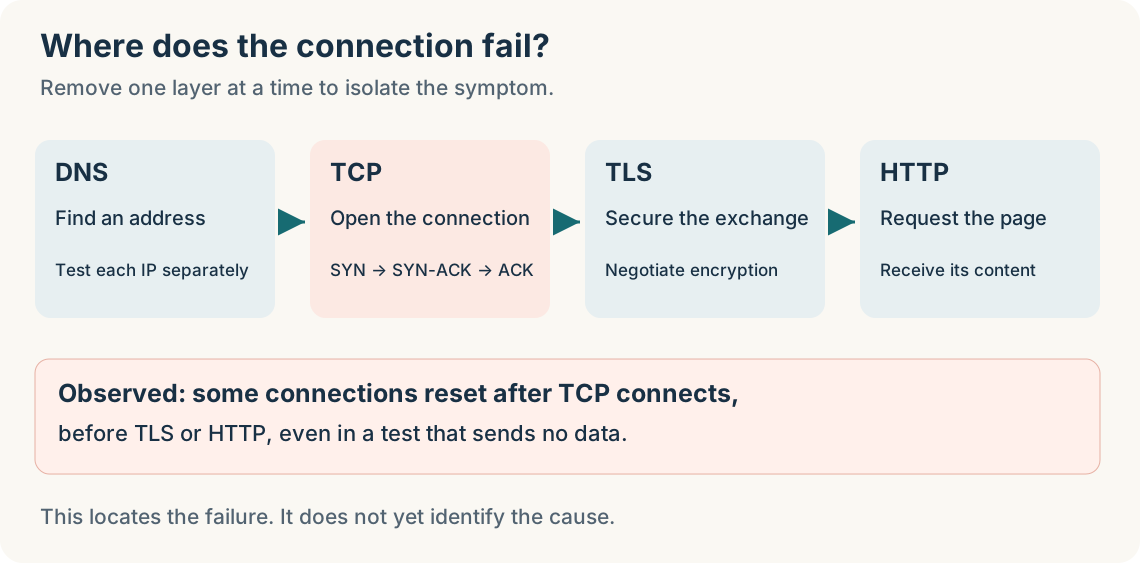
I’d found where the connection broke. I still needed to find out why.
4. What if the problem was on my PC?
I had located the failure, but the culprit was still out of sight. Time for what I imagined as Patrick Jane’s walk around the room: take a closer look at what was right in front of me. I examined my PC’s network configuration.
The connection used Wi-Fi. I checked the default IPv6 route, the installed networking software, and the available proxy settings. No proxy was configured in those settings.
Traceroute didn’t provide an answer. Several routers replied and others stayed silent, but that didn’t tell me where the resets came from. A missing traceroute reply wasn’t enough to conclude that HTTPS packets were being lost either.
Another detail caught my attention: my PC’s Wi-Fi interface had two global IPv6 addresses, one stable and one temporary. I forced the source address to compare their behavior.
- With the temporary address, some connections worked while others were cut off almost immediately.
- With the stable address, five TCP connections stayed open during the short test without data. HTTPS requests still failed, usually after about 2.8 seconds.
The stable address looked promising at first. But HTTPS tests to Google failed with it too. The TCP test had only shown that a connection could stay open briefly. It hadn’t shown that the page could load.
I put my premature “Et voilà!” on hold. I was still at the false lead halfway through the episode.

I thought I had it… back to the investigation. — Source: Tenor.
This lead hadn’t produced a solution. Still, the change in symptoms depending on the source address deserved a closer look. Curl’s “witness statements” could only take me so far. I wanted to compare them with the evidence left by the packets.
5. Watching the traffic with PktMon
I couldn’t read a suspect’s expression like Patrick Jane, but I could examine packet headers. Less compelling television, perhaps, but I hoped they would reveal the missing clue.
I chose Packet Monitor, or PktMon, a network diagnostic tool built into modern versions of Windows.
It can capture packets at several points in the network stack and collect information about packet drops. Microsoft’s documentation describes these features.
For this investigation, that meant I could compare what happened inside Windows with the traffic visible at the Wi-Fi adapter. In particular, I wanted to know whether the resets arrived from the network and whether outgoing packets kept the same addresses.
I limited the capture to the Marketplace addresses and TCP port 443. The first 128 bytes of each packet were enough to examine the relevant headers. Even so, the files contained addresses and network details, so I masked local addresses in the public examples.
Preparing a targeted capture
Before the packets could tell their story, I had to set the scene. My setup was less theatrical than one of Patrick Jane’s tricks: an administrator PowerShell window and two commands to check PktMon’s status and filters.
pktmon status
pktmon filter list
The script below assumes PktMon is stopped and the filter list is empty. It starts its own session and removes its filters at the end. If a capture or filters already exist, I need to preserve them before proceeding: pktmon filter remove removes every filter.
$ErrorActionPreference = 'Stop'
$targetHost = 'marketplace.visualstudio.com'
$url = "https://$targetHost/items?itemName=iolys.iolys-visual-studio"
$addresses = @([Net.Dns]::GetHostAddresses($targetHost))
if ($addresses.Count -eq 0) { throw 'No addresses resolved.' }

$captureDir = Join-Path $env:TEMP ('marketplace-' + (Get-Date -Format 'yyyyMMdd-HHmmss'))
New-Item -ItemType Directory -Path $captureDir | Out-Null
$started = $false
$filtersAdded = $false

try {
    $index = 0
    foreach ($address in $addresses) {
        $index++
        & pktmon filter add "marketplace-$index" -i $address.IPAddressToString -t TCP -p 443
        if ($LASTEXITCODE -ne 0) { throw 'Could not add the filter.' }
        $filtersAdded = $true
    }

    & pktmon start --capture --comp all --pkt-size 128 `
        --file-size 128 --log-mode multi-file `
        --file-name (Join-Path $captureDir 'capture.etl')
    if ($LASTEXITCODE -ne 0) { throw 'Could not start the capture.' }
    $started = $true

    foreach ($family in @('-4', '-6')) {
        foreach ($attempt in 1..5) {
            & curl.exe $family --silent --output NUL `
                --connect-timeout 3 --max-time 6 `
                --write-out "$family attempt=$attempt http=%{http_code} error=%{errormsg}\n" `
                $url | Tee-Object -FilePath (Join-Path $captureDir 'requests.txt') -Append
        }
    }
} finally {
    if ($started) {
        & pktmon stop
        if ($LASTEXITCODE -ne 0) {
            throw 'PktMon stop not confirmed: check its status before starting another capture.'
        }
    }
    if ($filtersAdded) { & pktmon filter remove }
}

# Keep and convert every file produced in multi-file mode.
Get-ChildItem -LiteralPath $captureDir -Filter 'capture*.etl' | ForEach-Object {
    & pktmon etl2txt $_.FullName --out (Join-Path $captureDir ($_.BaseName + '.txt')) --verbose --hex
    & pktmon etl2pcap $_.FullName --out (Join-Path $captureDir ($_.BaseName + '.pcapng'))
    if ($LASTEXITCODE -ne 0) { throw 'PCAPNG conversion failed.' }
}
Write-Host "Files: $captureDir"
This example covers part of the investigation. The full script also compared destination and source IP addresses. The text output lets me examine PktMon events; the PCAPNG file can be opened in a packet capture viewer.
Microsoft’s documentation covers the capture options and filter management.
6. The detail that changes the investigation
I finally had the traces I needed to replay the scene. Time to look for the small detail that would make Patrick Jane raise an eyebrow. I started by following a TCP connection that sent no application data. At the Wi-Fi adapter, the exchange looked like this:
| Local time, September 29 | Direction | Packet |
|---|---|---|
| 03:33:47.639 | PC → network | SYN: request to open a TCP connection |
| 03:33:47.652 | Network → PC | SYN-ACK: response to that request |
| 03:33:47.654 | PC → network | ACK: confirmation of the connection |
| 03:33:47.657 | Network → PC | RST: connection reset |
The RST arrived at the Wi-Fi adapter before Windows reported the error to the program. SYN-ACK retransmissions appeared afterward. The reset really did come from a packet received from the network.
I could have taken that as confirmation of my original suspicion about Microsoft. But a remote server may reject a connection if the packets it receives have changed along the way. I also needed to examine what my PC was sending.
That’s when two anomalies appeared:
- The first SYN carried a nonzero IPv6 flow label, while subsequent packets carried zero. In the exchange above, the value changed from
0xcf40dto0. - In another test, I had forced the stable source address. The SYN used that address, but the ACK and TLS data went out with the temporary address.
The TCP ports and sequence numbers let me associate those later packets with the same connection attempt. The address change was already visible inside the Windows network stack, then at the Wi-Fi adapter. I now had evidence that packets were being modified on my own PC.
An identity change halfway through a conversation: finally, a detail worthy of Patrick Jane’s attention. My investigation into Microsoft’s servers had brought me back to my own keyboard.
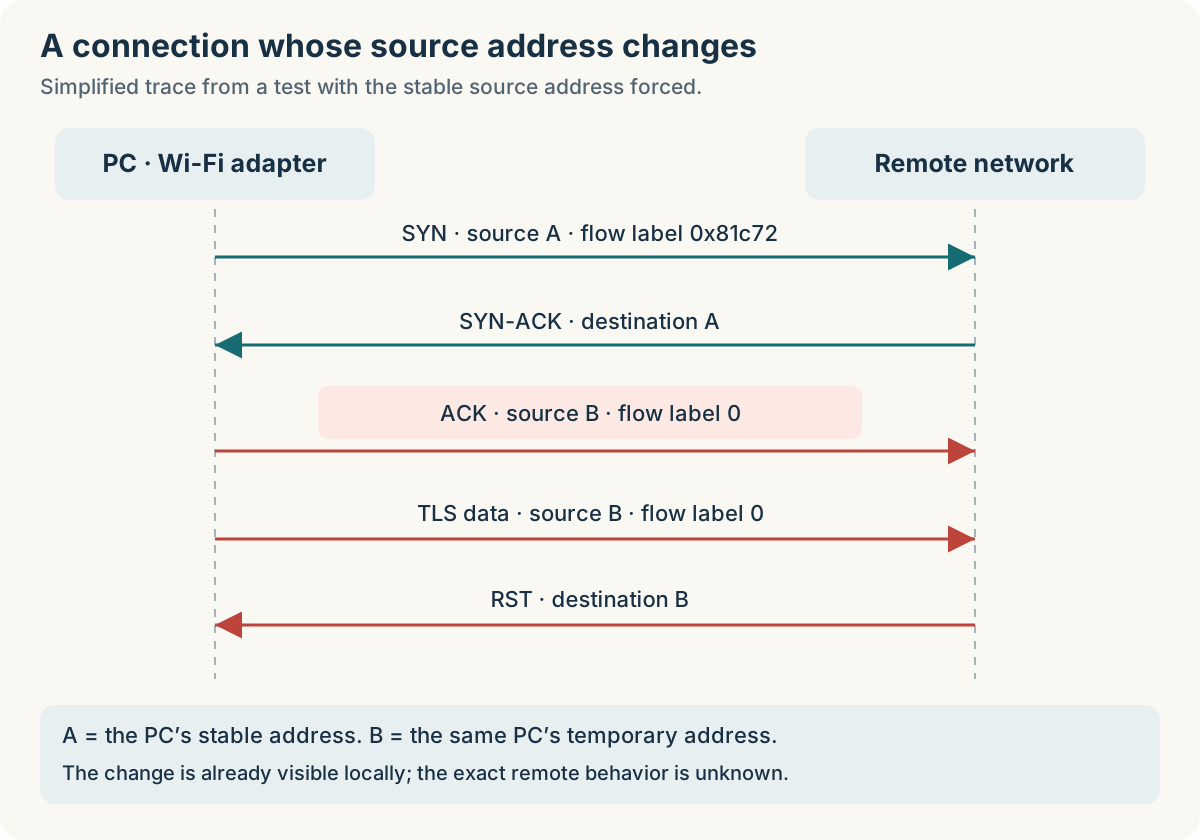
Simplified view of a test with a forced source address. A and B stand in for the PC’s actual IPv6 addresses.
The address change was especially suspicious. My PC opened the connection with one IPv6 address, then continued with another. The server might no longer recognize those packets as belonging to the same connection.
The flow label is a number carried in IPv6 packets. Some network equipment uses it, along with IP addresses, to keep packets from the same exchange on the same path. That is one of the uses described in RFC 6438.
In my capture, that number changed during the exchange. I had another possible explanation for the resets.
Why the Marketplace, when Google and Cloudflare worked?
This was the question that could still make me suspect Microsoft. Yet a problem on my PC could have different effects depending on the network equipment the packets passed through.
If a device used the flow label to choose a path, a change in that value could send later packets somewhere else. Equipment that didn’t use it could keep them on the same path. That could explain why some destinations worked while others failed. However, I had no access to Microsoft’s, Google’s or Cloudflare’s networks to confirm this explanation.
I also needed to qualify my initial observation: Google had failed when I forced my PC’s stable IPv6 address. Across all my tests, the problem wasn’t limited to the Marketplace. Those early successes with Google and Cloudflare weren’t enough to clear my PC.
7. Finding the component involved in the connection
I had found the clue. Now I needed to connect it to a suspect. In my episode of The Mentalist, the camera had just moved away from Microsoft’s servers and back to my PC. I was looking for a local component that could affect those packets.
Among the active components, I found Intel Connectivity Network Service and Intel Connectivity Traffic Control Callout Driver. They are associated with Intel Connectivity Performance Suite, or ICPS.
This suite can prioritize traffic from certain applications and optimize connection selection. The available features depend on the hardware and configuration, as Intel’s ICPS overview explains. Its role in handling network traffic made it worth investigating.
I then found a report on Intel’s forum describing IPv6 flow labels being reset to zero while the service was running. The author also reported an improvement after stopping it.
One detail made that report especially interesting: it described problems with dev.azure.com, which used 2603:1061:10:1::16, one of the addresses in my own tests.
The report sounded very much like what I was seeing. I finally had a concrete next step: stop the Intel service on my PC and repeat the same tests to see whether the failures disappeared.
8. Stopping the service, then checking whether the problem returns
Time for my Patrick Jane confrontation: put the suspect in a situation where its role would become clear. I compared three conditions:
- The service running.
- The service stopped.
- The service restarted.
For each phase, I sent ten IPv6 requests, alternating between the two Marketplace addresses.
Everything else stayed the same: the PC, the Wi-Fi connection, the URL and the test method. I wanted to observe the effect of that one change.
| Service state | HTTP 200 | Connection reset | Other result |
|---|---|---|---|
| Running | 🟢 2 / 10 | 🔴 7 / 10 | 🟠 One HTTP 503 |
| Stopped | 🟢 10 / 10 | 🟢 0 / 10 | 🟢 None |
| Restarted | 🟢 2 / 10 | 🔴 8 / 10 | 🟢 None |
I counted the HTTP 503 separately. The page wasn’t available, but an HTTP response had been received. Counting it as a reset would have hidden that distinction.
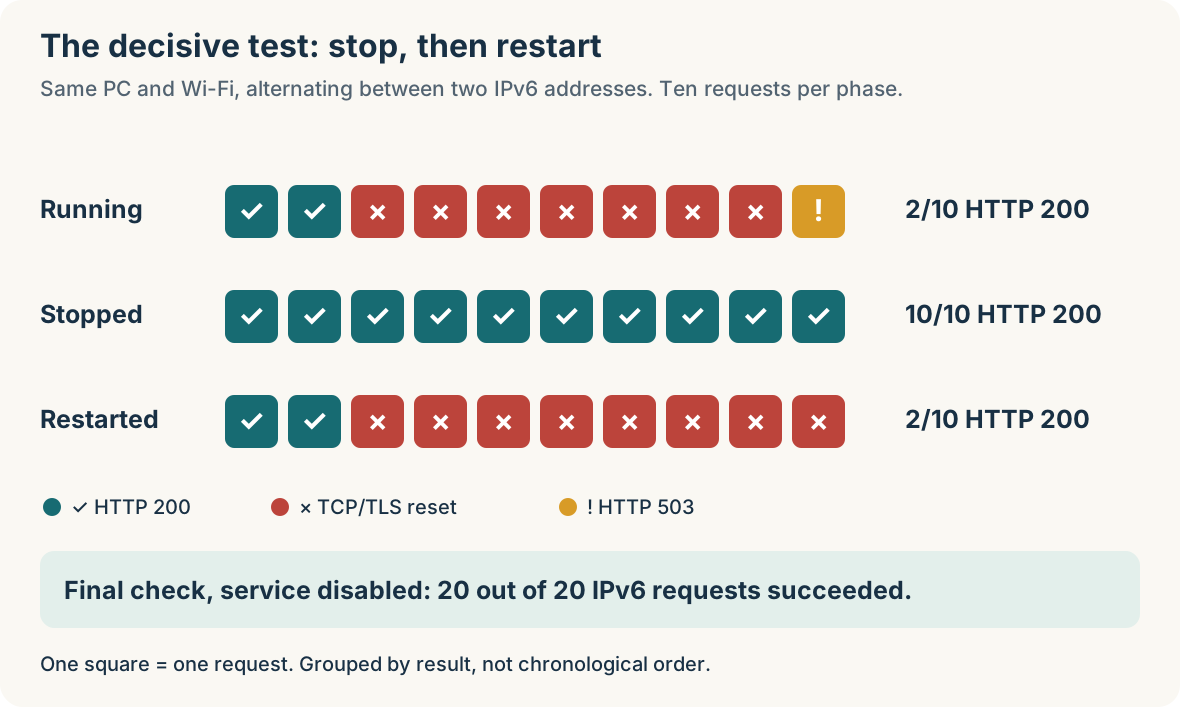
Each square represents one request. Results are grouped by category, not shown in test order.
Stopping the service made the failures disappear. Restarting it brought them back. This was the strongest evidence in the investigation. I was no longer relying only on similarities with another report: I could reproduce the problem by changing the service’s state.
That result strongly implicated the service on my setup. It didn’t reveal the exact defect in the driver or identify the remote device that sent each reset.
The comparison script
Here’s how I set up the experiment. No accomplice hiding behind a door: I ran the comparison in an administrator PowerShell window, with the service initially running. The version below restores that state in its finally block, without changing the service’s startup type.
$ErrorActionPreference = 'Stop'
$serviceName = 'Intel Connectivity Network Service'
if ((Get-Service -Name $serviceName).Status -ne 'Running') {
    throw 'This test requires the service to be running initially.'
}

$targetHost = 'marketplace.visualstudio.com'
$url = "https://$targetHost/items?itemName=iolys.iolys-visual-studio"
$ips = @([Net.Dns]::GetHostAddresses($targetHost) |
    Where-Object AddressFamily -eq ([Net.Sockets.AddressFamily]::InterNetworkV6))
if ($ips.Count -eq 0) { throw 'No IPv6 addresses resolved.' }
$rows = [Collections.Generic.List[object]]::new()

function Measure-Phase([string]$phase) {
    $expected = if ($phase -eq 'stopped') { 'Stopped' } else { 'Running' }
    foreach ($attempt in 1..5) {
        foreach ($ip in $ips) {
            if ((Get-Service -Name $serviceName).Status.ToString() -ne $expected) {
                throw "Service state changed during phase $phase."
            }
            $result = & curl.exe -6 --silent --output NUL `
                --connect-timeout 3 --max-time 6 `
                --resolve "${targetHost}:443:[$ip]" `
                --write-out '%{http_code}|%{time_total}|%{errormsg}' $url
            $exitCode = $LASTEXITCODE
            $fields = ($result -join '') -split '\|', 3
            $rows.Add([pscustomobject]@{
                Phase = $phase; Address = $ip.IPAddressToString
                Attempt = $attempt; ExitCode = $exitCode
                HttpStatus = $fields[0]; Seconds = $fields[1]; Error = $fields[2]
            })
        }
    }
}

try {
    Measure-Phase 'before'
    Stop-Service -Name $serviceName
    (Get-Service -Name $serviceName).WaitForStatus('Stopped', [TimeSpan]::FromSeconds(15))
    Start-Sleep -Seconds 2
    Measure-Phase 'stopped'
    Start-Service -Name $serviceName
    (Get-Service -Name $serviceName).WaitForStatus('Running', [TimeSpan]::FromSeconds(15))
    Start-Sleep -Seconds 2
    Measure-Phase 'restored'
} finally {
    $resultFile = Join-Path $env:TEMP ('marketplace-service-' + (Get-Date -Format 'yyyyMMdd-HHmmss') + '.csv')
    try {
        Start-Service -Name $serviceName
        (Get-Service -Name $serviceName).WaitForStatus('Running', [TimeSpan]::FromSeconds(15))
    } finally {
        $rows | Export-Csv -LiteralPath $resultFile -NoTypeInformation -Encoding UTF8
        Write-Host "Results: $resultFile"
    }
}
$rows | Format-Table -AutoSize
I then stopped the service and disabled its automatic startup. Wi-Fi and IPv6 kept working, but the ICPS optimizations that depend on the service were no longer available. I kept this workaround in place while waiting for a fix.
9. Continuing the investigation with Intel and Microsoft
I’d like to contact Intel and Microsoft, share my results and packet captures, and investigate further with them. The report involving dev.azure.com gives me another reason to keep going: why are these services particularly affected, and how can the problem be fixed for good?
After all those tests, I can finally allow myself a small “Et voilà!”

Source: Tenor.
What this investigation taught me
This investigation taught me how to use Packet Monitor and helped me understand what happens on the network when I open a web page.
Above all, it reminded me that my first impression isn’t always right. I suspected Microsoft’s servers; the tests led me back to an Intel service on my PC.
Like a good detective, I need to examine the different possibilities and look for evidence that supports or contradicts them, without letting my assumptions decide the outcome. That’s the lesson I’m taking from this little investigation. Patrick Jane would be proud of me.
And I learned one last thing: I really want to watch The Mentalist again.
Happy Coding :)
Further reading
Here are the references that helped fill out my case file and explain the tools and mechanisms discussed above. Even my inner Patrick Jane has to open the documentation sometimes.
- Microsoft: Packet Monitor overview — how PktMon works and the information it can collect.
- Microsoft: PktMon capture options — component selection, captured packet size and logging modes.
- Microsoft: PktMon filters — commands to inspect, add and remove filters.
- curl manual — IPv4/IPv6 selection,
--resolve, timings and exit codes. - RFC 6437: IPv6 Flow Label Specification and RFC 6438: Flow Labels and Load Balancing — the flow label’s role and its use in distributing traffic.
- Intel Connectivity Performance Suite — the features ICPS provides.
- Report on Intel’s forum — a case similar to mine, shared by a user rather than an official technical assessment.